Python EasyAccept – A Tool to Create Acceptance Tests in Python
User Manual
Version 2.0
April 16th, 2009
Requirements
Python EasyAccept is a tool
developed to help Python development teams create acceptance tests. Such tests
are black box and aim to capture the functional requirements for a software
system as expressed by a client. A client is typically a non-IT person with a
need to be solved through a software system. Python EasyAccept is being
developed with the following requirements in mind:
- It should be easy for a client to write
acceptance tests him or herself. Since knowing what to test needs some
training (e.g. to test limit conditions, etc.), this task will usually be
performed together with an experienced software person.
- Even if a software person helps a client
to write tests, the client must be able to thoroughly understand the
written tests without any help (after learning a bit about test language
syntax).
- Python EasyAccept should be reasonably
easy to retrofit into existing Python software, as long as business logic
has been separated from user interface considerations in the software to
be tested.
- It should be easy to automate the
execution of acceptance tests.
- It should be easy to test error conditions
and non-error conditions.
How to install
Python EasyAccept library
Windows users
Before install the Python Easyaccept library you need to add the Python path to the system path. A permanent way to do this is setting it in the system environment variables. Now, when you type python at any DOS command prompt, you should be getting into the interpreter.
You need to download the latest version installer of the PythonEasyAccept. Execute the file and follow the instructions bellow.
The first page shows the installation wizard.
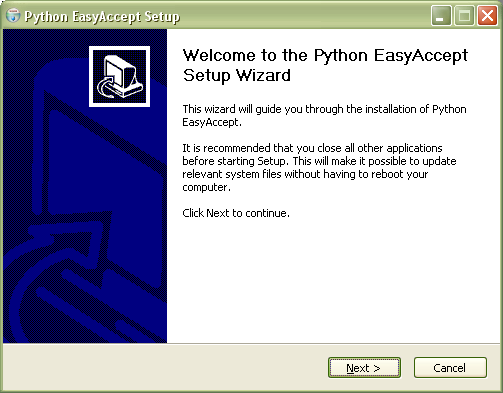
The second page shows the tool license. Read it and agree with it to proceed installation.
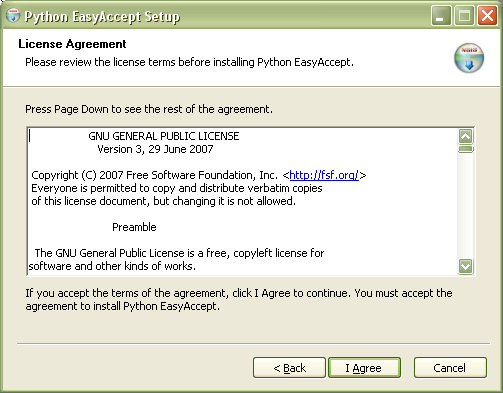
The following page shows the progress of the installation.
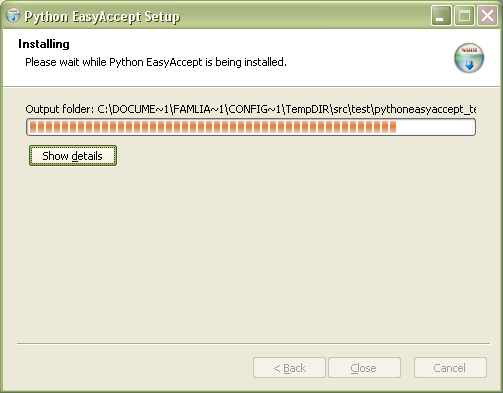
After a very short while the setup program finishes. Click "Close" to exit the installer.
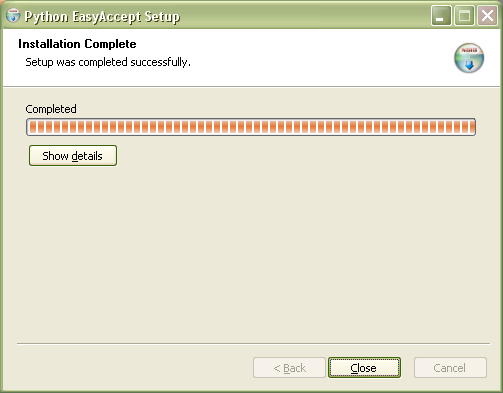
Enjoy it!.
Linux users
Debian users
If you are using a Debian based distribution of the GNU/Linux operating system, download the latest version of the .deb file from downloads page. Just type:
dpkg -i pythonEasyAccept_version.deb
Non-Debian users
Download the latest version
of the source file from downloads page.
Extract it, get into the created directory and run:
python setup.py install
Python EasyAccept GUI
A graphic user interface was developed to help the creation of tests scripts. It is required the wxPython and the PythonEasyAccept library.
Windows users
Before install the Python Easyaccept library you need to add the Python path to the system path. A permanent way to do this is setting it in the system environment variables. Now, when you type python at any DOS command prompt, you should be getting into the interpreter.
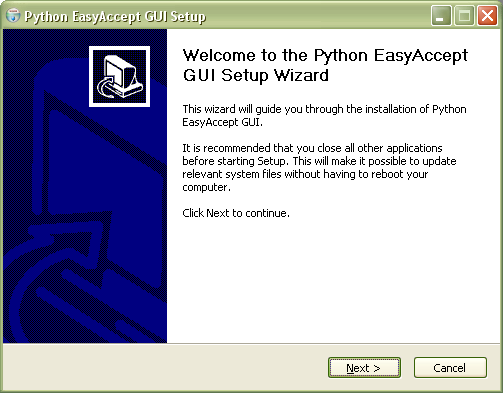
You need to download the latest version installer of the PythonEasyAccept GUI. Execute the file and follow the instructions bellow.
The first page shows the installation wizard.
The second page shows the tool license. Read it and agree with it to proceed installation.
The following page asks you the components to install. If you've already install the PythonEasyAccept library and/or the wxPython, and don't want to override the currently files, uncheck it. Otherwise, proceed the normal installation.
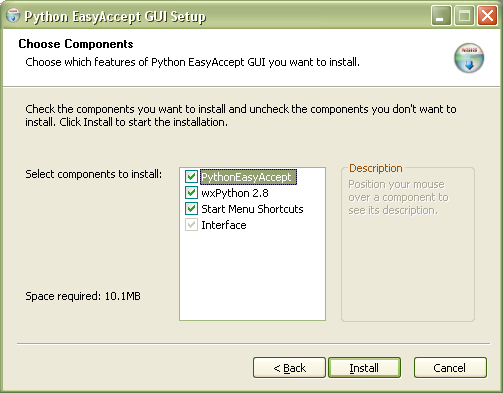
The setup first install the
PythonEasyAccept library.
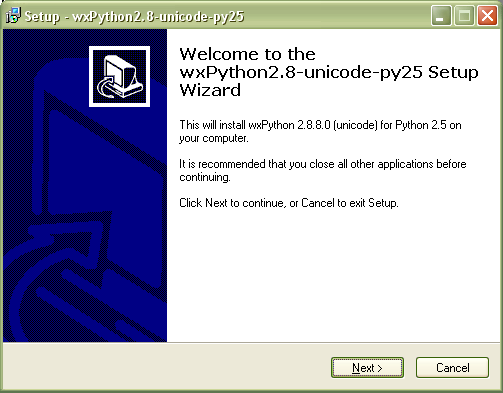
Short time, the wxPython will be
installed.
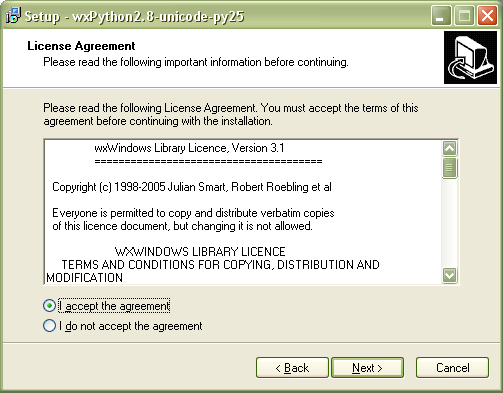
Read the license, if you agree to the license conditions select "I accept the agreement" and click "Next".
Inform the Python location and click "Next".
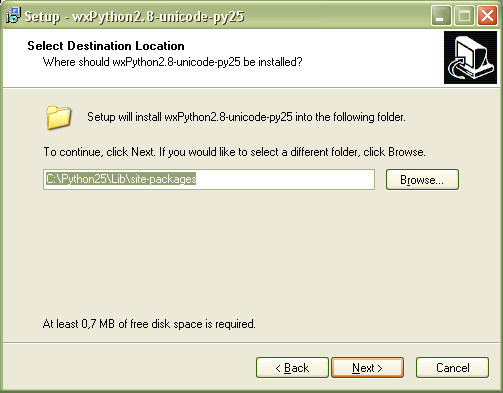
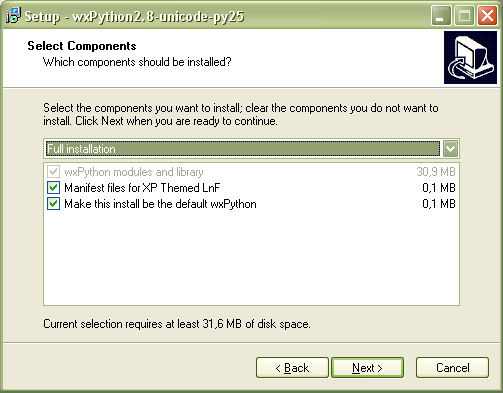
Choose appropriates options and click "Next" to start the installation of the wxPython.
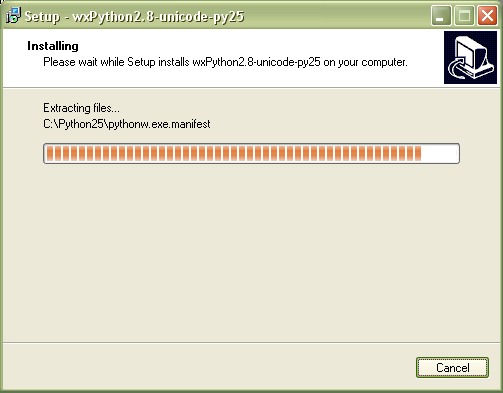
The installation program starts copying the files to the path you've chosen.
After a very short while the setup program finishes. Click "Finish" to compile files and to proceed the installation of the interface.
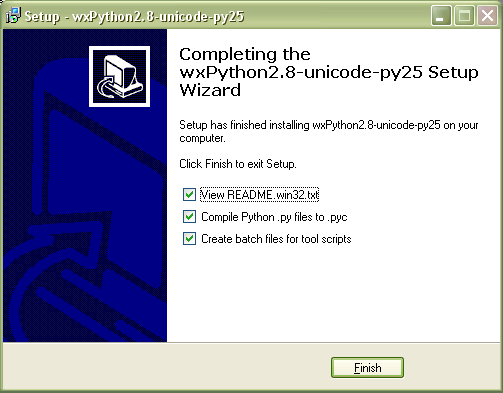
After the requirements installed the setup compile all interface files and finishes.
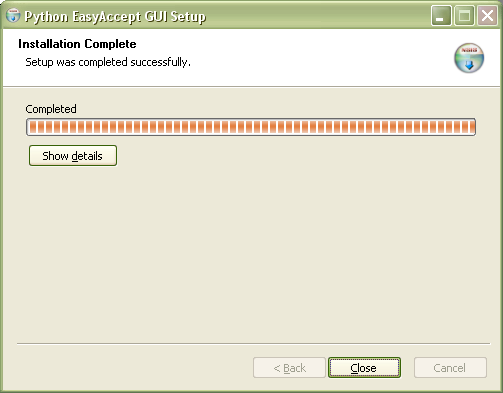
Now, you can use a very nice tool to create tests scripts for your application. Details about how to use it see here.
Linux users
Debian users
If you are using a Debian based distribution of the GNU/Linux operating system, first of all install the requirements.
sudo apt-get install pyhton2.5
sudo apt-get install wx-Python
Download the latest version of the .deb file from downloads page. Just type:
dpkg -i pythonEasyAccept-gui_version.deb
Non-Debian users
First install the PythonEasyAccept library and the wxPython
.
Download the latest version
of the .deb file from downloads page.
Extract it, get into the created directory and run:
python setup.py install
Basic Decisions
In order to satisfy the
above requirements, the following decisions were taken:
- Tests are written using a simple script
language. A script can call business logic and check that it produces the
proper output.
- The script language is not
object-oriented. It seems easier not to burden the client with the notion
of objects, encapsulation, state, etc.
Internal Commands
COMMAD |
DESCRIPTION |
containsString |
Built-in command that is used to
check that a (business logic) command produced a substring of the expected
result. |
echo |
Built-in command that returns the
concatenation of its parameters. |
equalFiles |
Built-in command that compares two
files. |
expect |
Built-in command that is used to
check that a (business logic) command produced the expected result. |
expectBetween |
Built-in command that is used to
check that a (business logic) command produced a value between two expected
values. |
expectDifferent |
Built-in command that is used to
check that a (business logic) command produced a different result from
a given described result. |
expectError |
Built-in command that is used to
check error conditions of a (business logic) command. |
expectFalse |
Built-in command that is used to
check that a (business logic) command produced the False Boolean value. |
expectTrue |
Built-in command that is used to
check that a (business logic) command produced the True Boolean value. |
randomDouble |
Built-in command that returns a random
double number. |
randomInt |
Built-in command that returns a random
integer number. |
timeout |
Built-in command that determines the time out of the test script execution. |
Examples
Executing business logic
A script is written in a
text file. A command is written on a single line. A command is simply executed.
For example:
createUser key1 "John Doe" 1957/02/04
or
createUser key=key1 name="John Doe" birthdate=1957/02/04
The tool will simply call the createUser business method passing three parameters
to it.
Checking business logic
execution
Special built-in commands
can be used to check that a (business logic) command worked correctly. For
example:
createUser key1 "John Doe" 1957/02/04
expect "John Doe" getUserName key1
expectDifferent 1958/02/04 getBirthDate key1
In the above, the first
line calls a business logic command. Python EasyAccept will accept that it has
functioned correctly if it does not produce an error (an Exception, in
programmer parlance). The next line also calls business logic (getUserName with parameter key1)
but checks that it returned the string “John Doe”. The third line checks that
the defined birth date is
different from the correct birth date.
Using variables
Sometimes it is necessary
to obtain the result returned by a command in order to use it in the test
script. For example, suppose that the createUser command chooses a record
key internally (say a database OID) that is unknown to the tester. The following
script shows how to deal with the situation using variables (assuming that
createUser returns the chosen record key):
key=createUser "John Doe" 1957/02/30
expect "John Doe" getUserName ${key}
The syntax ${varName} is substituted by the variable's value.
The scope of a variable is
the set of scripts being executed, that is, from the time of variable definition
until the end of the current EasyAccept execution.
Here is another example that checks whether two users with the same attributes generated different keys in the database:
key1=createUser "John Doe" 1957/02/04
key2=createUser "John Doe" 1957/02/04
expectDifferent ${key1} echo ${key2}
It is also possible to declare
lists. An example is following:
list=[1, 2, 3, 4]
expect "['1', '2', '3', '4']" echo ${list}
Checking error conditions
A special built-in command
can be used to check that a (business logic) command produces an error (using
an exception). For example:
expectError "Unacceptable date." createUser "John Doe" 1957/02/30
In the above line, a
business logic command is called (createUser).
Python EasyAccept will accept that it has functioned correctly if it produces
an error (an Exception, in programmer parlance) and if the Exception's error
message is "Unacceptable date."
The language
A script resides in a text
file. Each line consists of commands fallowed be parameters values. The
following are examples of acceptable parameters values:
value
""value value value … value
In the first case, there is
a simple value; in the second case, the value is empty; the third case shows
how to represent an array of parameters values.
- In a line, the first name represents a
command to be executed. The command must match a method available in the
business logic (or Python EasyAccept built-in commands). Parameters are
passed as given in parameters value sequences (each one of them separated
by white space). The order of the parameters in the test must match the
order in the business logic (or the Python EasyAccept built-in command). Remember
that the parameter order is important. A method appropriate to the
parameter types given will be found in the business logic or in the
built-in command.
A line starting with # is a
comment.
Built-in commands
Python EasyAccept has some
built-in commands used to perform special testing actions. They are described
below:
containsString
containsString superString businessLogicCommand paramValue ...
This command executes the businessLogicCommand passing the specified parameters. The businessLogicCommand must return a string which is compared with superString. The test passes if the superString contains the returned string. No errors (exceptions) may occur.
echo
echo any
string
This command returns the
arguments passed as parameter. It is typically used to examine command results,
variable names, etc.
equalFiles
equalfiles OKfile fileToTest
This command test files
contents. It receives two files, and the test passes if the two files have
identical contents. By convention, the first file contains the correct
(expected) output and the second file contains the file to be tested. This
command is typically used after a business logic command that has produced its
output in a file. See an example below:
equalfiles c:/projetos/script1.txt c:/script2.txt
expect
expect expectedString businessLogicCommand paramValue ...
This command executes the businessLogicCommand passing the
specified parameters. The businessLogicCommand
must return a string which is compared with expectedString. The test passes if the strings are
equal. No errors (exceptions) may occur.
expectBetween
expectBetween expectedValue1 expectedValue2 businessLogicCommand paramValue ...
This command executes the businessLogicCommand passing the specified parameters. The businessLogicCommand must return a double value which asserts if is between expectedValue1 and expectedValue2. The test passes if the result is between the two expecteds values. No errors (exceptions) may occur.
expectDifferent
expectDifferent stringNotExpected businessLogicCommand paramValue ...
This command executes the businessLogicCommand passing the
specified parameters. The businessLogicCommand
must return a string which is then compared with stringNotExpected. The test passes if the strings
are different. No errors (exceptions) may occur.
expectError
expectError expectedErrorString businessLogicCommand paramValue ...
This command executes the businessLogicCommand passing the
specified parameters. The businessLogicCommand
must return an error (produce an exception, in Python) using an error string.
This string is compared with expectedErrorString.
The test passes if the strings are equal. If no exceptions are thrown, the test
does not pass.
expectFalse
expectFalse businessLogicCommand paramValue ...
This command executes the
businessLogicCommand passing the
specified parameters. The businessLogicCommand
must return the False boolean value. The test passes if the return are False.
If no exceptions are thrown, the test does not pass.
expectTrue
expectTrue businessLogicCommand paramValue ...
This command executes the
businessLogicCommand passing the
specified parameters. The businessLogicCommand
must return the True boolean value. The test passes if the return are True.
If no exceptions are thrown, the test does not pass.
randomDouble
randomDouble rangeInit rangeEnd
This command generates and
returns a random double number.
randomInt
randomInt rangeInit rangeEnd
This command generates and
returns a random integer number.
timeout
timeout time
This command exits the executing
tests in the current test script when the time
specified has been passed. The parameter time
should be expressed in seconds.
Instructions for the
Programmer
In order to expose the
business logic of your program, you must write a façade. Python EasyAccept will
instantiate the façade once and the public methods contained in the façade will
be callable from a test script. Remember to separate the business logic from
the user interface. Your façade should not print anything anywhere. It should
communicate itself with the outside by accepting parameters, returning results
or throwing exceptions. Parameters and return values cannot be objects.
In order to call Python EasyAccept
to test a program, the user needs to import Python EasyAccept and use its API (Application
Programming Interface). See below how to use Python EasyAccept to test software
by a simple client class:
----------------------------------------------------------------------------------------------------------------------------------------------------------
from pyeasyaccept.PythonEasyAcceptFacade import PythonEasyAcceptFacade
class SimpleClient:
#Put test script files into the
"testScripts" array
testScript1 = "testScript1.txt"
testScript2 = "testScript2.txt"
testScripts = [testScript1, testScript1]
#Instantiate your software facade
yourSoftwareFacade = YourSoftwareFacade()
#Instantiate PythonEasyAcceptFacade
pythonEAFacade = PythonEasyAcceptFacade(yourSoftwareFacade, testScripts)
#Execute the tests
pythonEAFacade.executeTests()
#Print the tests execution results
print pythonEAFacade.getCompleteResults()
----------------------------------------------------------------------------------------------------------------------------------------------------------
Python EasyAccept API
The Python EasyAccept
API provides operations to execute test scripts and to obtain information about
its results. See below all the API operations and its descriptions:
0PERATION |
DESCRIPTION |
addErrorListener |
Adds a PyEAErrorListener to observe
errors in test scripts. Therefore, whenever an error occurs in a test
script, this listener will receive an event reporting the error occurred. |
| executeTests |
Execute the tests |
| getCompleteResults |
Returns a string that contains all
test scripts complete results. The complete results describe: the number
of passed tests, the number of not passed tests and the test errors
descriptions (if they occur). |
| getScriptCompleteResults |
Returns a string that contains the
complete results for the specified test script. The complete results
describe: the number of passed tests, the number of not passed tests
and the test errors descriptions (if they occur). |
| getSummarizedResults |
Returns a string that contains all
test scripts summarized results. The summarized results describe: the
number of passed tests and the number of not passed tests. |
| getScriptSummarizedResults |
Returns a string that contains the
summarized results for the specified test script. The summarized results
describe: the number of passed tests and the number of not passed tests. |
| getScriptResults |
Returns a list with all the results
for a specified test script. Each test result is a “result.Result”
object (each executed test script line has a related “result.Result”
object). |
| getLineResult |
Returns a specified script line result.
The test result is a “result.Result” object
(each executed test script line has a related “result.Result”
object). |
| getTotalNumberOfPassedTests |
Returns the number of passed tests. |
| getTotalNumberOfNotPassedTests |
Returns the number of not passed
tests. |
| getScriptNumberOfPassedTests |
Returns the number of passed tests
for a specified test script. |
| getScriptNumberOfNotPassedTests |
Returns the number of not passed
tests for a specified test script. |
| getTotalNumberOfTests |
Returns the total number of executed
tests. |
| getScriptTotalNumberOfTests |
Returns the total number of executed
tests for a specified test script. |
maxErrorsToReport |
Sets the number of errors that can be at the script to stops run the acceptance test if these numbers of errors occurred. |